Configuration
Display Config Screen
 Specs
Specs| OS | Windows® 8.1 64bit / Windows® 10 64bit / Windows® 11 64bit
|
|---|---|
| CPU | Core i5 4Core 2.8Ghz or higher / Ryzen5 4Core 3.2Ghz or higher |
| Memory | 8GB or above [16GB or above recommended] |
| GPU | GeForce GTX 760 or above OR Radeon R7 360 or above
|
| Resolution | 1920 x 1080 or higher |
| Other | Broadband internet recommended
|
*1 Stable gameplay not guaranteed on laptop computers, all in one display devices, and tablets. Not compatible with 32bitOS. Stable gameplay only guaranteed on the most recent version of the OS, corresponding to the period of support provided by the OS's
manufacturer.
*2 Stable gameplay not guaranteed on mobile GPU or CPU-internal GPU. Not compatible with the RadeonHD series. Please install the latest driver provided by the manufacturer of your graphics card.
*3 It is not necessary to be connected to the internet to use this product, but certain functions will be disabled during offline play. Not compatible with mobile phone tethering.
Related Software Basic Controls
| Mouse Control | ||
|---|---|---|
| Camera Rotation | Right Click Drag | |
| Parallel Movement of Camera Viewpoint | Scroll Wheel Drag | |
| Camera Zoom | Mouse Scroll Wheel | |
| Shortcut | ||
| Screenshot with UI | Shift + PrintScreen | |
| Screenshot | Alt + PrintScreen | |
| Parallel Movement of Camera Viewpoint | Press W/A/S/D while holding mouse scroll wheel | |
*You cannot use the mouse cursor to control the camera when it is on top of a button or window.
System MenuDisplay Config Screen
Take a screenshot with UI elements hidden. (Alt + PrintScreen)
Take a screenshot with UI elements displayed. (Shift + PrintScreen)
The DLC shop (Kiss Character Edit System Shop) will open in a separate browser.
Display game version information.
The online manual will open in a separate browser.
The KCES Link Online Manual will open in a separate browser.
Close and exit game.
ConfigurationYou can choose to set the system language to Japanese or English.
You can toggle the display of system buttons between ON and OFF. When set to OFF, buttons will be displayed when the cursor is moved to the upper right.
Display FPS in the upper right.
Switch between Window and Full Screen modes.
Change image resolution.
Change Vsync.
Change the size of screenshots.
Change anti-aliasing settings.
Change shadow quality.
Change texture quality.
Change bloom speed.
Change volume of each sound type.
Toggle confirmation dialogue box display between ON and OFF.
Main ScreenThe major body part categories are displayed.
The customizable parts for the body part you have selected in the first category are displayed.
Items and sliders to customize your selection in the second category are displayed.
This window is displayed when you can change the color of the item you have selected. Additionally, you can click the + icon to edit the color. See "Color Settings" for more details.
Click the + icon in Color Palette to display. You can edit the colors of the selected item. Additionally, the Gradation Settings window will be displayed when Gradation can be applied to the selected item.
Change the expression of the character you are editing.
Change the pose of the character you are editing.
Choose between "Fully clothed," "Underwear," and "Nude" for the character you are editing.
Change the edit screen background.
Show the selected character's height, weight, and 3 sizes.
Turn this on to open the "Custom View" window. You can check which items your character is currently wearing in the "Custom View" window. Additionally, you can click on the icons for the items being worn to open a customization window for the selected item.
Turn this on to display buttons related to camera settings.
Click the system button in the upper right to open. This menu contains system options related to configuration and the manual. See the "system menu" for more details.
InterfaceReturn all options to their default settings.
Return the selected option to its default setting.
Remove the selected item.
Displays a window that allows you to change the placement of the selected item.
Displays a window that allows you to adjust the intensity of the shadow cast on the body and clothing by the breasts.
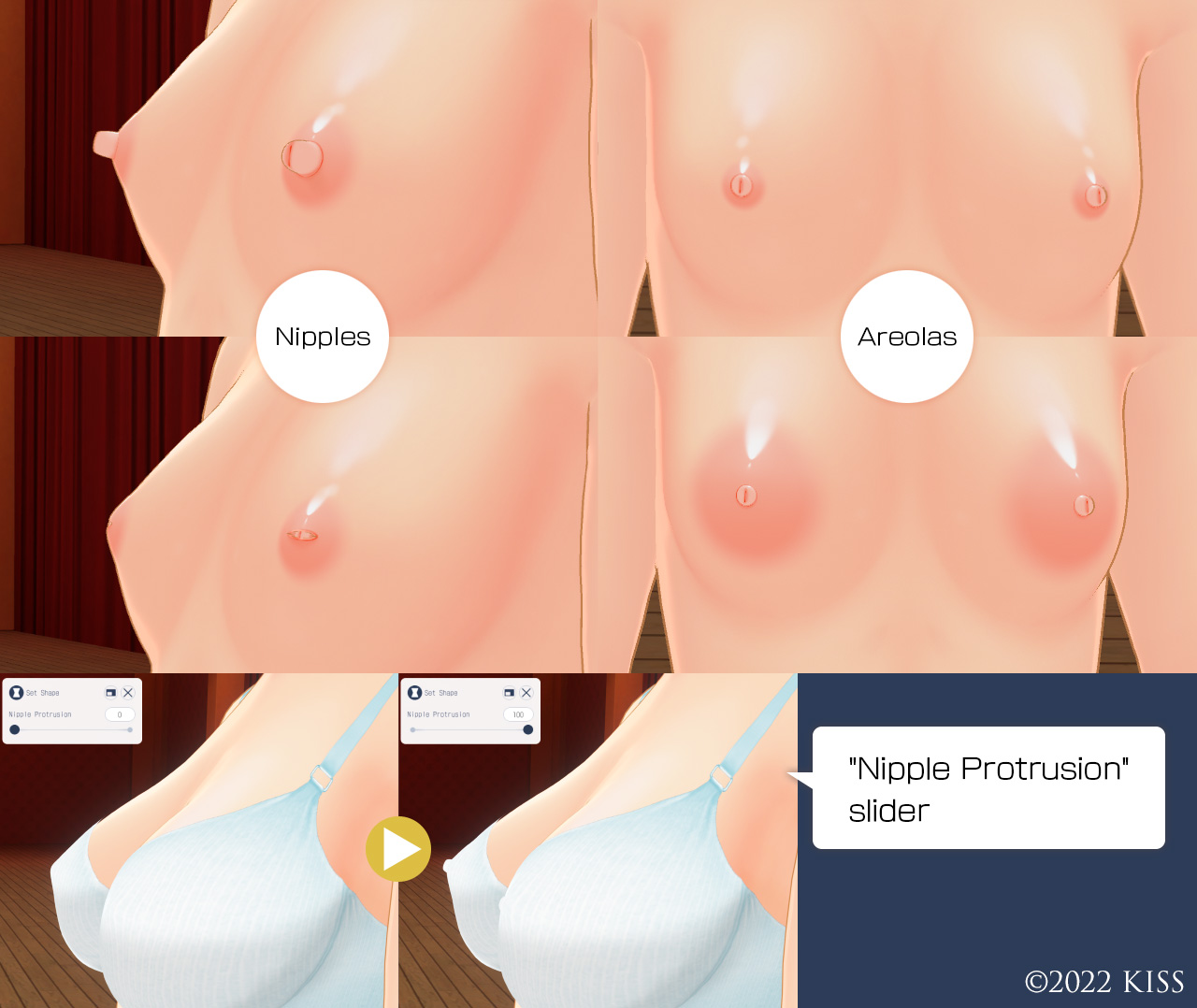
Displays a window that allows you to change the shape of certain items.
Displays a window containing settings related to breast exposure. You can roll up or push aside clothing to expose the breasts.
Displays a window that allows you to adjust the length of the hair.
Displays a window that allows you to show/hide the left and right sidelocks.
Opens a screen that allows you to change the color of the hair nodes. See "Hair Node Settings" for more details.
Change ColorPress the + button to automatically save the currently selected color.
You can change the color and gradation settings. The gradation option will only be displayed if the item is compatible.
Press the + button to automatically add the color. You can press the human-shaped icon to re-edit.
Press this button to jump to the Detail Settings screen. This changes the human-shaped Edit Color icon to the Detail Settings icon.
Press the Details button in the Color Palette window to jump to the Detail Settings screen. This will add a plus symbol to the icon, and clicking this will allow you to re-edit the colors.
You can display the settings by selecting the item as active.
Click to be able to change the settings.
PresetYou can select a bin to save your presets in. You can use up to 10 boxes.
Press this button to save the character you are currently editing as a preset.
Select one of your saved presets. Click to load the preset.
When loading a preset, you can select which parts to load.
You can use the EX bin to load officially distributed presets.
SupportWhile we strive to provide players with a complete and polished gaming experience, there may be errors or bugs. If you encounter any, please contact us using the mail form below and provide us with as much detail about the situation as
you can. If we bear responsibility for the error, we will fix or exchange it free of charge. We may determine the issue to not be eligible for support in the following cases:
●If the user is determined to be at fault due to either intentional or accidental action
●In cases of unauthorized reproduction
Please read the manual carefully before sending an inquiry and check the following:
●Is your device properly working and connected?
●Have you met the minimum technical specifications listed in the manual?
*Please be aware that we will not answer questions about game strategies or the content of the game.
Bugs may be fixed in update patches. For more details, please see our official homepage at the link below.

©2022 KISS